
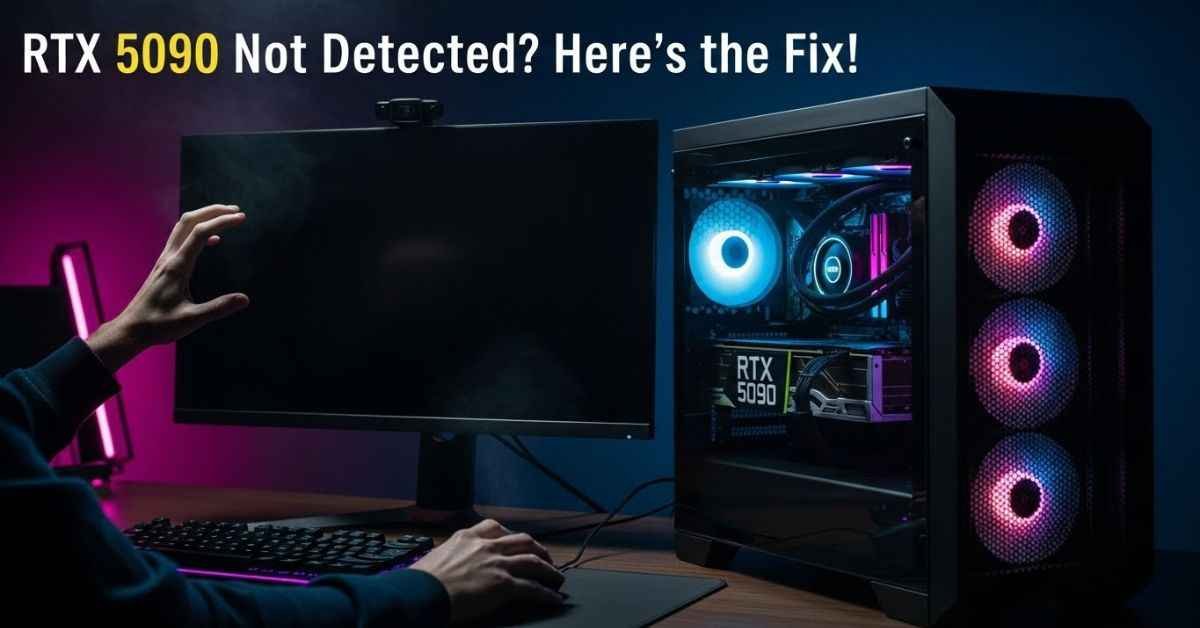
Imagine the excitement of finally holding a two-thousand-dollar piece of tech in your hands. You spent months saving and weeks tracking stock alerts to get the NVIDIA GeForce RTX 5090 or the 5090D. You carefully slide the card into your PC, install the new driver, and wait for that first glow of high-end graphics. Instead, your screen turns pitch black. Your heart sinks because your brand-new card is not showing up in the BIOS, and your computer acts like it does not exist.
Right now, many people are feeling this exact fear as reports of RTX 5090 & 5090D bricked issues begin to flood the community. You are likely frustrated because you followed every step correctly, yet your expensive gaming rig is now a quiet, dark box. The stress of seeing a “No Signal” message on a three-thousand-dollar investment is enough to make anyone panic. You may feel like you have wasted your time and money.
The good news is that you are not alone, and your card might not be dead. There is a very specific reason why these new Blackwell cards are acting this way. Most of these “bricked” issues are not actually hardware failures. They are often caused by a “handshake” problem between your motherboard and the new PCIe Gen 5 technology. By understanding a few expert tricks and cloud-based firmware checks, you can bring your card back to life. This guide will show you how to fix your card today.
Solving the Mystery of RTX 5090 & 5090D Bricked Issues
When a computer does not see a graphics card, it feels like the hardware is broken. Many users report that after installing driver 572.16 or 572.42, the RTX 5090 simply disappears. It does not show up in Windows Device Manager. Even the system BIOS says the slot is empty. This is the main reason people are using the word “bricked.” They think the card is a total loss.
However, a real “brick” means the internal chips are fried and can never work again. In this case, the card is often just “stuck” in a state where it cannot talk to the rest of the PC. The new RTX 50 series is the first to use full PCIe 5.0 speeds. Many motherboards are struggling to handle this high-speed signal. When the driver tells the card to go to full power, the signal becomes unstable and cuts out. This leads to a scary black screen that will not go away.
If you are seeing a black screen, the first thing to check is your connection type. Interestingly, many people have found that their cards are only “blacking out” on DisplayPort cables at high refresh rates. If you switch to an HDMI cable or lower your monitor to 60Hz, the signal often returns. This proves the card is still alive and just having a “conversation” problem with your monitor. It is a relief to see that the card still works.
Why Motherboard BIOS is the Secret Culprit
Most people blame NVIDIA when a card stops working, but the motherboard is often the real problem. The RTX 5090 and 5090D require very specific electrical timing to work at Gen 5 speeds. Many older motherboards, even those made just a year ago, do not have the right “instructions” to talk to a Blackwell GPU. This creates a big gap in how the two parts share data.
If your card is not being detected, your motherboard BIOS likely needs an update. Manufacturers like ASUS, Gigabyte, and MSI have released “Beta BIOS” versions specifically to fix the RTX 50 series detection issues. Without this update, the motherboard tries to use settings that were made for older cards. This causes the system to give up on the GPU and default to a black screen. It is like trying to read a new book in an old language.
Another major hurdle is the physical PCIe slot itself. If you are using a “Riser Cable” to mount your GPU vertically, you are almost guaranteed to have issues. Most riser cables are only rated for PCIe 3.0 or 4.0. When you put a 5090 on a Gen 4 riser, the card tries to send Gen 5 data through a Gen 4 pipe. This results in an immediate crash or a card that refuses to boot. You must plug the card directly into the slot for the best results.
Fixing RTX 5090 & 5090D Bricked Issues with Gen 4 Downgrades
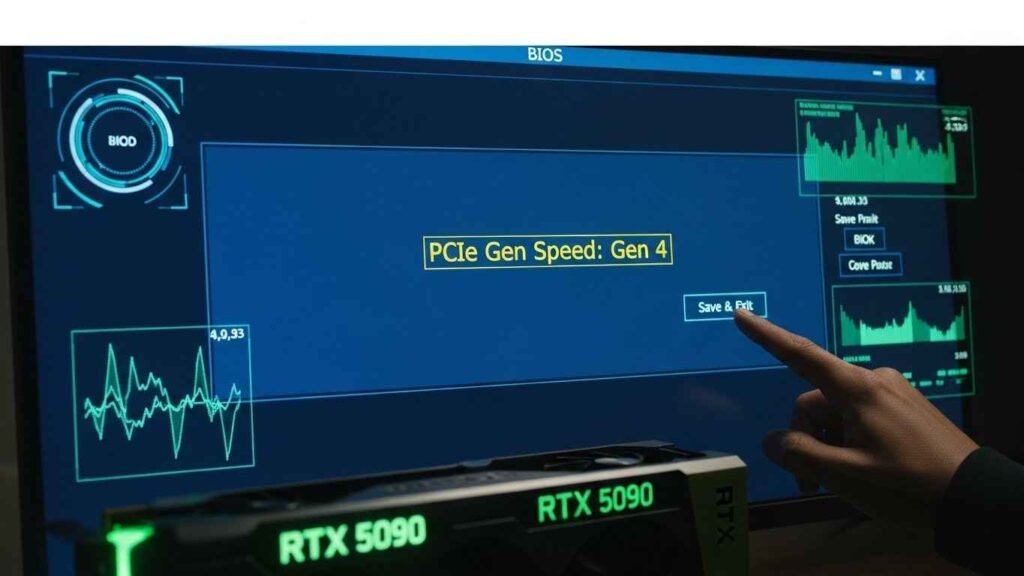
One of the most effective solutions is also the most surprising. You can fix most “bricked” RTX 5090 issues by telling your computer to run a little slower. In your motherboard BIOS settings, you will find an option for “PCIe Bus Speed.” It is usually set to “Auto” or “Gen 5.” This setting tells the computer how fast to talk to the card.
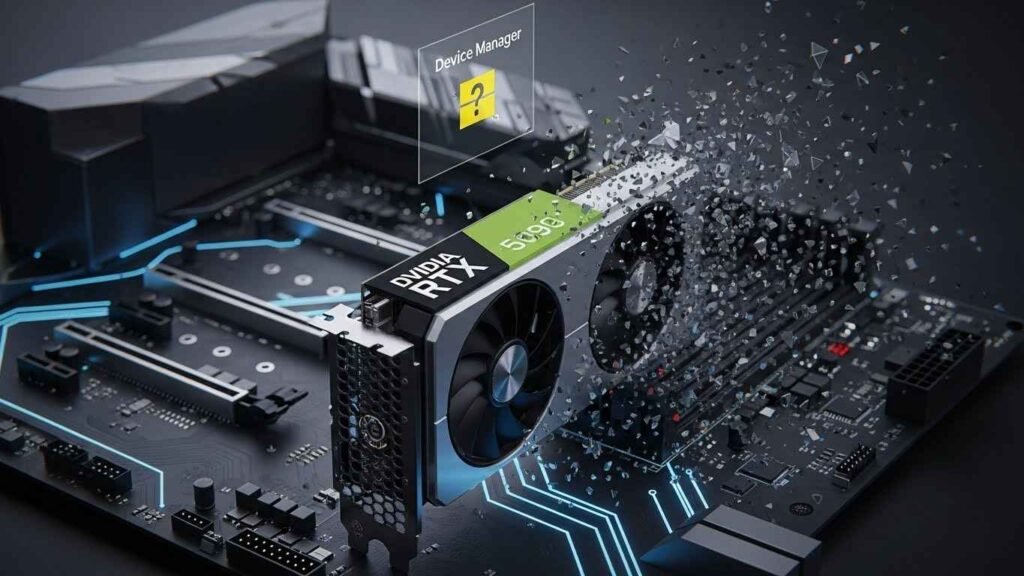
By manually changing this setting to “Gen 4,” you stabilize the connection. Even though Gen 5 is technically faster, the current performance difference is less than one percent. By moving down to Gen 4, you give the card a much more stable environment. This simple change has revived hundreds of cards that people thought were permanently broken. It stops the signal from dropping out during heavy use.
Once you change the setting to Gen 4 and save the BIOS, your card will likely appear in Windows again. From there, you can perform a “Clean Installation” of the drivers. A clean install is vital because it removes any old files from your previous card that might be confusing the new RTX 5090. Using a clean slate makes the whole system run much smoother. You will feel much better once the card starts working again.
Cloud-Based Firmware Recovery and Testing
In 2026, we have access to new “Cloud-Verified” firmware tools. Many manufacturers now offer a way to check your GPU’s health through the cloud before you send it back for a refund. If your card is detected but crashing, you can use official manufacturer apps to download a “VBIOS” (Video BIOS) update directly from their servers. This is a very safe way to fix the internal software of the card.
These cloud updates are designed to fix power delivery problems. Some early 5090 and 5090D cards had a “power spike” issue where they would ask for too much electricity at once. The cloud-based VBIOS update teaches the card how to manage its power more smoothly. This prevents the “IC Burn” or “Blackout” issues that were reported during the first week of the launch. It makes the card safer for your whole computer.
Using these tools gives you a professional level of control over your hardware. Instead of guessing if the card is broken, the software runs a cloud-based check against known working profiles. If your card fails this check, then you know for sure that it is a hardware problem and you should start the replacement process immediately. This saves you from a lot of guessing and worry. It provides a clear path forward for your tech.
Solving the RTX 5090D Export Limit Glitch
The RTX 5090D is a special version of the card made for specific regions like China. Because it has certain “performance caps” built in to meet export rules, it has its own set of unique issues. Some users found that trying to “overclock” or unlock the 5090D caused the firmware to lock the card entirely as a security measure. This is meant to keep the card within the legal rules.
This looks like a bricked card, but it is actually a software lock. If you have a 5090D that went dark after you tried to use custom power software, the solution is a “CMOS Reset.” By removing the small battery on your motherboard for thirty seconds, you reset all hardware “handshakes.” This often unlocks the 5090D and allows it to boot again in its safe, default mode. It clears out the bad settings.
It is also important to note that the 5090D is very sensitive to power cables. While the 4090 used a specific 12-pin cable, the 50 series uses an updated 12V-2×6 connector. Using an older adapter can cause the card to detect a “power mismatch” and refuse to turn on. Always use the cable that came in the box with your 5090D to avoid these fake bricking scenarios. The right cable is the key to steady power.
Protecting Your GPU from Driver Conflicts
Driver 572.16 became famous for causing black screens across multiple generations of cards, not just the 5090. If you installed this driver and lost your display, the card is not broken. Your Windows system is simply struggling to load the new graphics instructions. It gets confused by the new data.
To fix this, you need to use a tool called DDU (Display Driver Uninstaller) in “Safe Mode.” Safe Mode starts your computer with the most basic graphics possible. This allows you to delete the bad driver without the card crashing. Once the old driver is gone, you can install a “Hotfix” version like 572.65, which was made specifically to fix the startup black screen issues. This clears the path for the card to work.
Many people skip this step and try to install new drivers on top of old ones. This creates a “file conflict” that makes the card act like it has failed hardware. Taking the extra ten minutes to do a clean uninstall can save you the weeks of waiting for a repair that you did not actually need. It is a small step that prevents a huge headache. You can get back to gaming much faster.
The Role of High Power Draw and Melting Fears
There were many rumors that the RTX 5090 would melt cables just like some early 4090 cards did. This fear led many people to panic when their screen went black, thinking their card had caught fire. However, the 5090 uses a much safer connector design. It is built to handle more heat and power than the older cards.
Most “blackout” issues are caused by the card’s massive 575-watt power requirement. If your Power Supply (PSU) is not at least 1000 watts and ATX 3.0 certified, it might not be able to handle the “micro-spikes” of electricity the 5090 needs. When the PSU cannot keep up, it cuts power to the GPU to protect your house. It is a safety switch that turns everything off.
This looks like a bricked card because the PC stays on while the GPU goes dark. In reality, it is just a safety feature. To fix this, ensure you are not using “daisy-chain” cables. Every power plug on your 5090 should have its own separate cable going all the way back to the power supply. This keeps the power flow strong and steady. You will see much fewer crashes this way.
Understanding the Test Mode Monitor Glitch
Sometimes, the “bricked” look is actually caused by your monitor. High-end displays from brands like Samsung or LG have a “Test Mode.” If the monitor loses a signal for even a millisecond because of a driver glitch, it can get stuck in a loop where it shows different colors (Red, Green, Blue) instead of your desktop. This can look very scary to a user.
This makes it look like the GPU is “exploding” or “distorting,” but it is actually just the monitor waiting for a signal. If this happens, try unplugging your monitor from the wall for sixty seconds. This resets the monitor’s internal brain. Many users have found that their “bricked” GPU was actually fine, and it was just the monitor that needed a quick restart. It is a simple fix for a big worry.
Why Signal Integrity Matters for Gen 5
The jump from Gen 4 to Gen 5 is a big step for signal quality. Gen 5 is much more sensitive to “noise” in the system. This noise comes from other parts like fans, hard drives, and even the power cables. If the signal is not perfectly clean, the RTX 5090 will stop working to prevent data errors. This is why the card seems to “die” under load.
Improving your signal integrity can fix many of these issues. Using a high-quality motherboard with extra shielding on the PCIe slots can make a huge difference. Also, keeping your cables organized and away from the graphics card helps reduce noise. A tidy PC is often a more stable PC. This helps the card maintain its high-speed connection without dropping out.
Checking the Hardware for Physical Damage
While most issues are software, you should still check the physical parts. Look at the gold pins on the bottom of the card. They should be clean and shiny with no scratches. If there is dust in the PCIe slot on the motherboard, it can block the signal. You can use compressed air to clean out the slot before you plug the card back in.
Check the power connector on the card for any signs of discoloration. If the plastic looks dark or melted, do not try to fix it yourself. This is a sign of a real hardware failure. In most cases, though, the card will look perfectly new. This means the problem is almost certainly a setting in your BIOS or a driver file that needs to be replaced.
The Importance of Using Official Power Adapters
NVIDIA provides a special power adapter in the box with every RTX 5090. This adapter is tested to handle the high current the card needs. Some people try to use third-party “fancy” cables because they look better. However, these cables may not have the right thickness to carry enough power safely. This can lead to the card shuting down under stress.
Using the official adapter is the safest choice for your card’s health. It ensures that all the pins are making good contact. If the pins are loose, the electricity can arc and cause heat to build up. This is what leads to melting. By sticking to the official parts, you remove one more thing that could go wrong with your expensive GPU.
Cooling Your Card for Long-Term Safety
Heat is the enemy of all computer parts. The RTX 5090 is a very hot card because it uses so much power. If your PC case does not have enough airflow, the heat will build up and cause the card to slow down or crash. This “thermal throttling” can make the card act like it is broken when it is just too hot to work.
Adding more fans to your case is a cheap and easy way to protect your investment. You should have cold air coming in from the front and hot air going out through the back and top. This “wind tunnel” keeps the fresh air moving over the GPU. A cool card is a happy card that will last for many years of gaming. You will notice much better performance when the heat is managed.
FAQs of RTX 5090 and 5090D Repair Solutions
Is my RTX 5090 actually bricked if the screen is black?
Not necessarily. Most issues are caused by PCIe 5.0 compatibility or driver conflicts. If you can still hear Windows sounds or see a BIOS logo when you first turn on the PC, your card is likely fine and just needs a settings change.
How do I fix the RTX 5090 black screen after installing drivers?
The most common fix is to enter your motherboard BIOS and change the PCIe slot speed from “Auto” or “Gen 5” to “Gen 4.” This stabilizes the connection and allows the card to be detected properly.
Will a BIOS update fix my bricked GPU?
Yes, many motherboard manufacturers have released BIOS updates specifically to fix “detection” issues with the RTX 50 series. Updating your motherboard’s firmware is often the first step to reviving a missing card.
Why does the RTX 5090D have more issues in some regions?
The 5090D has specific firmware locks to comply with export laws. If you try to bypass these locks or use unverified power tools, the card may disable itself. Resetting your motherboard CMOS is the best way to fix this.
Does lowering the monitor refresh rate help with GPU crashes?
Yes. Some users have found that lowering their refresh rate to 60Hz or 120Hz stops the black screen issues. This is often a temporary driver bug that NVIDIA fixes in newer updates.
Disclaimer
The information provided in this article is for informational purposes only. Hardware troubleshooting involves risks that could void warranties or cause damage. We are not liable for any loss or injury resulting from the use of these tips. Always consult your manufacturer’s official documentation or a certified technician before making hardware changes.
You May Also Like: Twaingpt Exposed: The Shocking AI Tool Everyone Is Talking About
For More Information, visit TryHardGuides.

Emma Rose is the founder of TryHardGuides.co.uk and a senior content strategist specializing in lifestyle, personal development, and digital entrepreneurship. With a focus on evidence-based living, she produces actionable content designed to help readers make informed life decisions and navigate the evolving tech-lifestyle landscape. As the editorial lead, Emma oversees the site’s mission to provide trustworthy, high-authority information. Her work reflects a commitment to personal growth, transparency, and the pursuit of a well-balanced, informed life.