

Checking your school grades should be easy. But sometimes, a simple login feels like a giant wall. You might be staring at a screen that says “Login Failed” right before a big test. Or maybe you forgot your password and the “Reset” email never shows up. It is very stressful when you just want to see if you passed your math quiz, but the app keeps crashing. I know how it feels to worry about your progress while the technology seems to work against you.
In this guide, you will find clear steps to fix these common problems. We will look at how to get into your account quickly. You will learn how to find your class schedule without getting lost in the menus. We will also talk about how to keep track of your attendance so you never have to guess. By the time you finish reading, you will feel like an expert on using Stafford StudentVUE.
How to Access Your Stafford StudentVUE Login
Every student in Stafford County Public Schools gets an account automatically. You do not need to sign up for a new one. To start, you need to go to the official Stafford login page. Many students get confused because they find login pages for other school districts. Always make sure the website address has “staffordschools.net” in it. If the page looks different than usual, check that link first.
When you are on the right page, click the button that says “I am a student.” You will use your school email and the password your teacher gave you. If it is your first time, the system might ask you to change your password. Pick something you can remember but keep it private. Do not share it with friends. Keeping your grades private is important for your safety.
Fixing Login and Password Troubles
The most common hurdle is the “Invalid Username or Password” message. This usually happens if you have a small typo. Check if your “Caps Lock” is on. If you are sure your typing is correct but still can’t get in, do not panic. You can click the “Forgot Password” link. It will ask for your school email address.
Wait a few minutes for the email to arrive. If it does not show up in your main inbox, check your “Junk” or “Spam” folder. Sometimes school emails get sent there by mistake. If the email still does not come, you need to talk to your school’s technology helper. They are the only ones who can reset it for you manually. They want you to succeed, so do not be afraid to ask for help.
Steps to Set Up the Stafford StudentVUE App
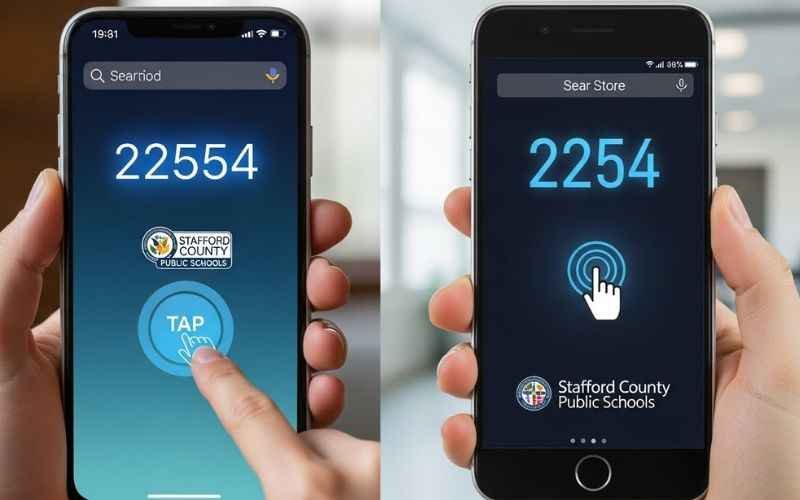
The StudentVUE app is great because you can check grades on your phone. But setting it up can be tricky the first time. After you download the app, it will ask for your school district. The easiest way to find it is to enter the zip code 22554. This is the code for Stafford.
Once you enter the zip code, select “Stafford County Public Schools” from the list. If the app asks for an “Activation Key,” look for a button that says “Already Activated.” Since your account is made by the school, you do not need a new key for the app. Just use the same username and password you use on a computer. This will sync everything so you see the same grades on your phone and your laptop.
Tracking Your Grades and Missing Work
The “Grade Book” is the most important part of the portal. When you click on it, you will see a list of all your classes. Next to each class is a letter grade or a number. If you click on the name of a class, it opens up a list of every assignment. This is where you can find out if you forgot to turn something in.
Look for codes like “M” or “Mi.” This usually means an assignment is missing. A missing assignment can lower your grade very quickly. By checking this every Friday, you can make sure you turn in late work before the weekend. This habit helps reduce the stress of report card day. You will always know exactly how you are doing in every class.
Understanding Your Class Schedule
At the start of a new semester, finding your classes can be a rush. In StudentVUE, click on “Class Schedule” to see your daily plan. It lists the name of the class, the teacher, and the room number. If you are a middle or high school student, it will also show you which “Period” the class is in.
Sometimes schedules change. If you see a blank screen, it might mean the school is still updating your classes. Check back in a few hours. You can also see your teacher’s email address right there. If you have a question about a room number, you can click the email icon to send them a quick note. It is the fastest way to get an answer.
Keeping an Eye on Attendance
Being in class every day is a big part of doing well. The “Attendance” tab shows you every time you were marked absent or tardy. Sometimes teachers make mistakes. If you were in class but the computer says you were absent, you should talk to your teacher the next day. They can fix it in the system.
You can view your attendance by looking at a calendar. Days with marks will be highlighted. This helps you and your parents keep track of how many days you have missed. Staying on top of this ensures there are no surprises when the school year ends. It also helps you stay responsible for your own learning time.
Viewing Documents and Report Cards
At the end of each quarter, the school posts your official report card. You do not have to wait for a paper copy in the mail. Look for the “Documents” tab. Here, you can find PDF files of your past report cards and attendance letters. You can download these to your computer or print them out.
These documents are official records. If you are applying for a job or a special program, you might need them. It is a good idea to save a copy of your final report card every year. This way, you have a digital folder of all your hard work from elementary school through high school.
Using the Calendar for Success
The StudentVUE calendar is a secret weapon for organized students. It does more than just show holidays. Many teachers post assignment due dates directly on the calendar. If you click on a date, you might see a reminder for an upcoming quiz or a project deadline.
Check the calendar at the start of every week. It helps you plan when to study and when to play. If you see three tests on a Friday, you will know to start studying on Monday. Using the calendar helps you take control of your time. You will feel much calmer when you have a plan for your busy week.
Managing Your Account Settings
In the “My Account” section, you can see your basic info. This includes your home address and your emergency contacts. While you cannot change your address yourself, you should check it for mistakes. If your phone number changes, tell your parents so they can update it in ParentVUE.
You can also choose how you want to get notifications. Some students like to get an alert on their phone whenever a new grade is posted. Others find this stressful and prefer to check once a day. You can turn these alerts on or off in the settings. Choose what makes you feel the most confident and focused.
Tips for a Smooth Experience Every Time
To keep StudentVUE running well, always log out when you are finished. This is very important if you are using a computer at the library or in a classroom. If you stay logged in, someone else might see your private information. Taking one second to click “Logout” keeps your data safe.
Also, try to use a modern web browser. Chrome and Firefox usually work best with school websites. If a page is not loading correctly, try refreshing the screen. Most of the time, a quick refresh fixes the problem. If that fails, clearing your browser’s history or “cookies” can make everything feel new again.
Finding Help When You Need It
It is okay to have questions. If you are stuck, your first step should always be the Stafford County Public Schools website. They have a special page for “ParentVUE and StudentVUE Access.” It has videos and pictures that show you exactly where to click.
If the website does not help, talk to your school’s office. They have people who help with computer problems every day. They are used to fixing login issues and can get you back into your account in minutes. Remember, StudentVUE is a tool to help you. When it works right, it makes school much easier to handle.
Final Thoughts on Your Academic Journey
You now have the knowledge to handle your Stafford StudentVUE account like a pro. You know how to log in, fix password errors, and use the mobile app. You also know how to check your grades, find your classes, and track your attendance. These skills will help you stay organized and successful all year long.
Checking your portal regularly takes the mystery out of school. Instead of worrying about what your grades might be, you can see the truth anytime. This gives you the power to ask for help when you need it and celebrate your wins when you do well. Use this tool every week, and you will find that managing your school life becomes much simpler and less stressful.
Common Questions About Stafford StudentVUE
How do I find the district code for Stafford StudentVUE?
This is a very common frustration when first setting up your phone. Instead of typing the full name of the school, use the zip code 22554 in the search box. Swipe left on the screen, enter the zip code, and “Stafford County Public Schools” will appear in the list. Selecting it this way ensures the app connects to the correct Virginia servers.
How do I reset my Stafford StudentVUE password?
It is incredibly annoying to wait for an email that does not show up. First, check your “Junk” or “Spam” folder for an email from Noreply@staffordschools.net. If you still see nothing, it usually means your account needs a manual reset. Students should email helpdesk@staffordschools.net with their full name and Student ID number to get back into their account.
Why am I seeing an “Invalid Activation Key” error?
Getting an error code when you are trying to be productive is a huge hurdle. This usually happens if the name you typed does not match the school’s records exactly (for example, using a nickname instead of a legal name). If you are sure the name is right and it still fails, the key might have expired. You will need to contact your school’s main office to request a fresh activation code.
How do I find exactly which assignments are missing?
Instead of guessing why a grade is low, you can see a direct list of work you need to finish. Go to the Grade Book tab and click on the specific class name. Look for assignments marked with a red “Mi” or “Missing” icon. These are the items that are currently counting as a zero and bringing your average down.
Can I see my grades from last year in StudentVUE?
Yes, but you have to look in a different spot than your current classes. Click on the Documents tab on the left side of the screen. You will find PDF copies of your past report cards and transcripts there. This is very helpful if you need to see your old grades for a summer job or a club application.
Do I need to create a new account every school year?
No, you do not need to worry about extra paperwork each August. Your StudentVUE account stays the same as long as you are a student in Stafford County. Your new classes and teachers will automatically show up on your schedule a few days before the first day of school.
Disclaimer: This article is for informational purposes only and is not an official publication of Stafford County Public Schools (SCPS). While we strive for accuracy, login procedures and software interfaces may change. We are not responsible for account lockouts or technical issues within the Synergy platform. For official support or sensitive account changes, please contact your school’s technology help desk directly.
You May Also Like: StudentVUE Cobb Guide: Login, Use, and Safety Tips Explained
For More Information, visit TryHardGuides.

Emma Rose is the founder of TryHardGuides.co.uk and a senior content strategist specializing in lifestyle, personal development, and digital entrepreneurship. With a focus on evidence-based living, she produces actionable content designed to help readers make informed life decisions and navigate the evolving tech-lifestyle landscape. As the editorial lead, Emma oversees the site’s mission to provide trustworthy, high-authority information. Her work reflects a commitment to personal growth, transparency, and the pursuit of a well-balanced, informed life.