
Last Updated:25/April/2026
The astro a40 tr headset mixamp pro 2017 remains a legendary choice for competitive gamers who demand precision. While it is a legacy model, its professional build and “Tournament Ready” audio quality keep it relevant today. Many users find it superior to newer wireless options because it offers zero-latency sound and deep customization. This guide explains how to connect this classic gear to modern systems and how to optimize your settings for the best possible experience. Whether you play on a high-end PC or the latest consoles, this setup ensures you never miss a critical sound cue.
Technical Specifications at a Glance
To understand why this headset ranks so high, we must look at the internal hardware. The 2017 model was built with premium materials designed for long-term use.
- Transducer Principle: Open Air (allows for a wide, natural soundstage).
- Frequency Response: 20Hz – 20,000Hz (covers the full range of human hearing).
- Nominal Impedance: 48 Ohms (easy to drive with the included MixAmp).
- MixAmp Pro Type: Fully Digital (Gen 3 architecture).
- Connection Type: 3.5mm Mini-stereo and TOSlink Optical.
How to Connect Astro A40 TR MixAmp Pro 2017 to PS5 & Xbox Series X
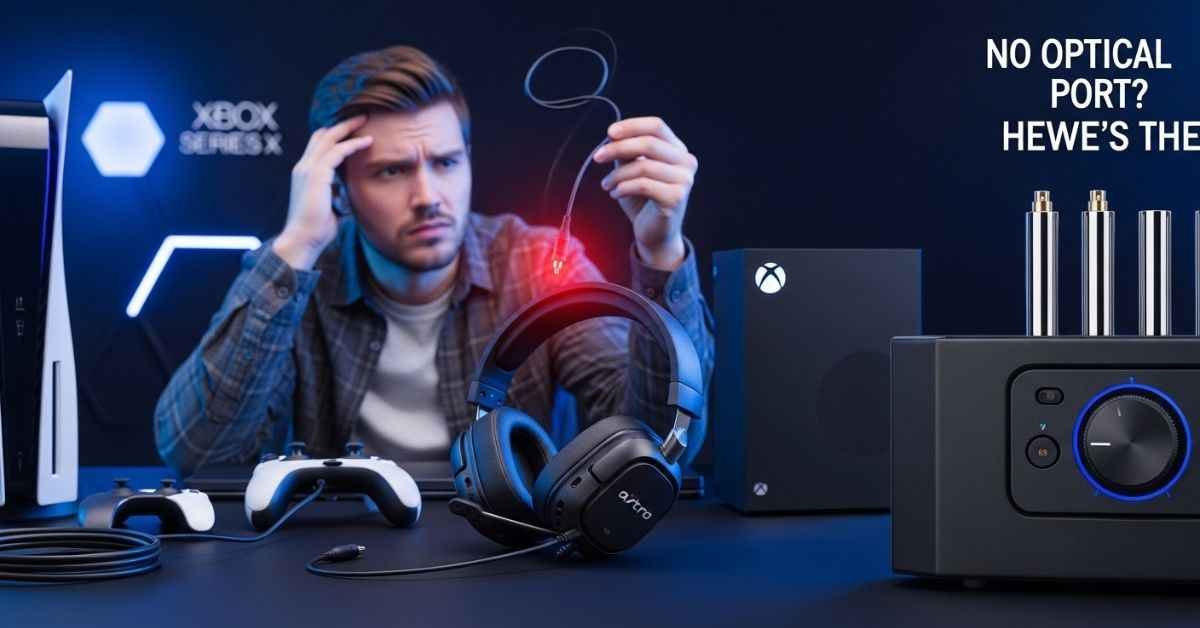
Connecting the astro a40 tr headset mixamp pro 2017 to modern consoles is the biggest challenge for owners. Both the PlayStation 5 and Xbox Series X removed the optical audio port. If you connect via USB only, you lose the ability to use the “Game/Voice” balance dial. The audio will also sound flat because the MixAmp cannot process 7.1 surround sound through a standard USB port on these consoles.
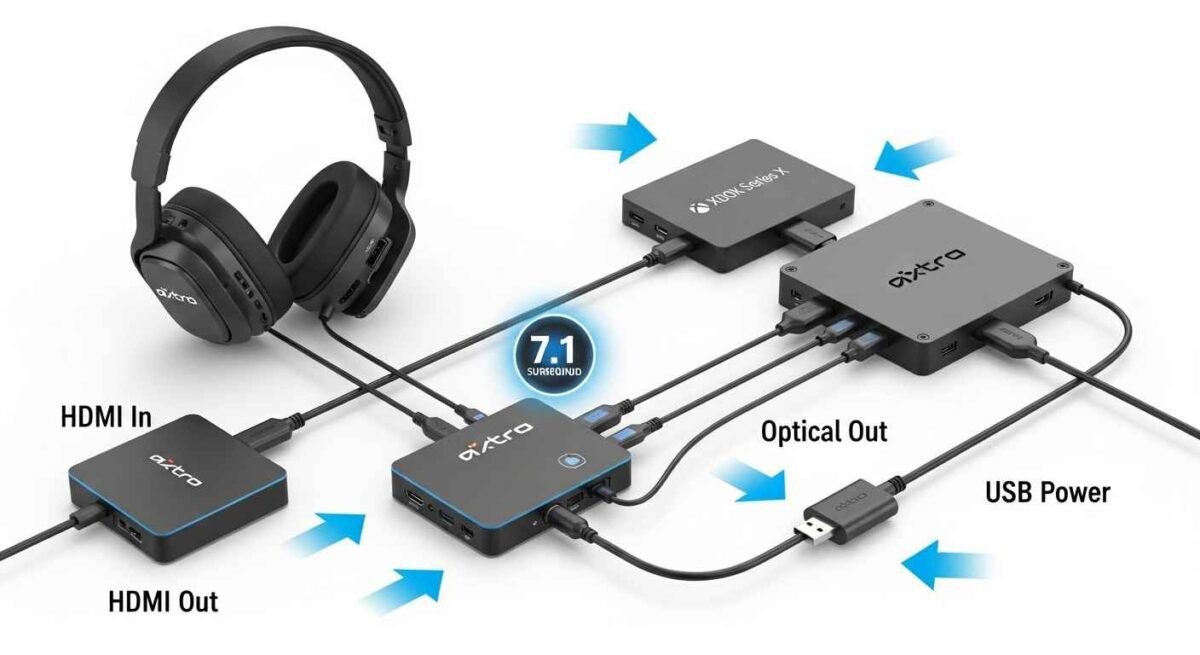
To fix this, you need a modern HDMI Optical Extractor. This small device sits between your console and your TV. It splits the audio signal from the HDMI cable and gives you a dedicated optical port. By plugging your MixAmp into this extractor, you restore the full Dolby Digital surround sound. This setup is the only way to get professional-grade audio on modern consoles using the 2017 hardware.
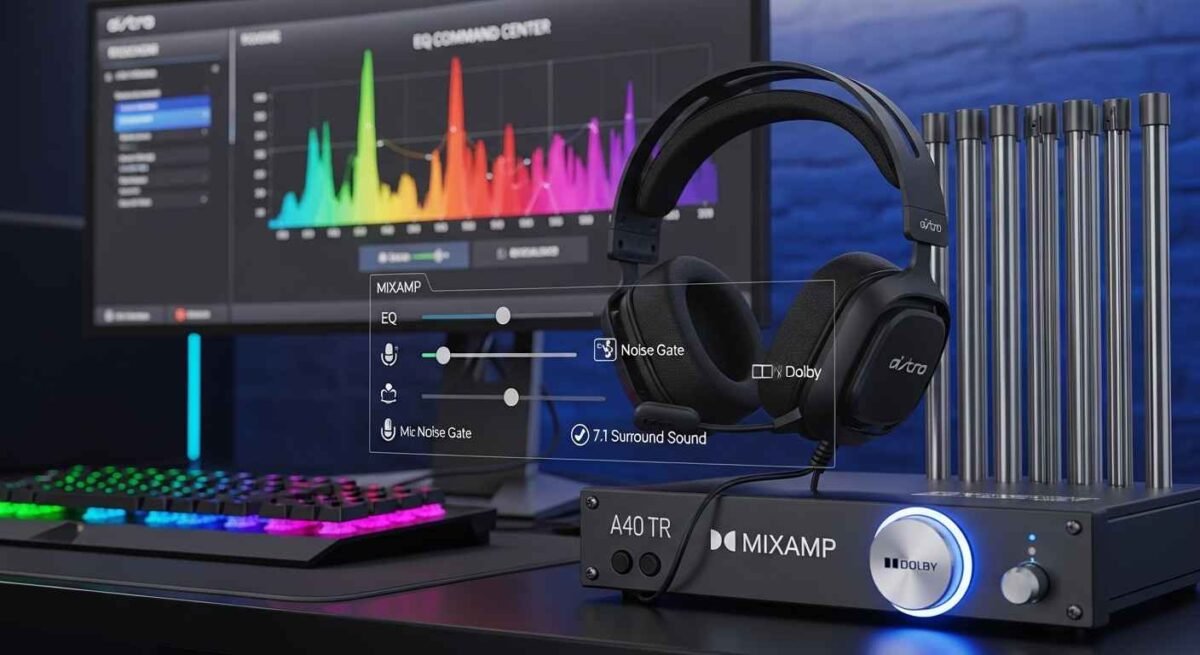
Optimized Astro A40 TR Headset MixAmp Pro 2017 Software Setup
The “Astro Command Center” is the brain of your audio system. You must download this software on a PC or Mac to unlock the full potential of your gear.
- Firmware Updates: Ensure your MixAmp is running the latest firmware to prevent connection drops.
- Noise Gate Settings: If you play in a loud room, set your mic noise gate to “Tournament.” This stops background noise from reaching your team.
- Microphone Levels: Set your mic volume to approximately 80% to avoid sounding distorted or “peaking” during intense games.
For PC users, your Windows settings are just as important. Go to your sound control panel and set the “Default Format” to 2-channel, 16-bit, 48000Hz. This ensures the MixAmp processes the signal without any digital errors or lag.
Best EQ Presets for Competitive Gaming
EQ presets change how your headset handles different frequencies. You can save four presets directly onto the MixAmp and switch between them with a button.
Tournament Mode for Footsteps
This setting is vital for games like Call of Duty or Apex Legends. It boosts the high frequencies where footstep sounds live. By lowering the deep bass, you can hear enemy movements clearly even when explosions are happening around you. It provides a massive advantage in tactical situations.
Media Mode for Immersive Audio
If you are watching movies or playing a single-player RPG, use Media Mode. This preset boosts the low-end bass and balances the treble. It makes cinematic moments feel much larger and more powerful. It turns your gaming headset into a high-quality pair of headphones for entertainment.
Astro A40 2017 (Gen 3) vs. 2019 (Gen 4): Which is Better?
Many gamers still prefer the 2017 model over the 2019 version. One major reason is the physical design. The 2017 MixAmp uses a horizontal layout with a heavy, stable base. Newer models changed to a vertical design that some find less intuitive.
Technically, the 2017 version is built like a tank. The metal adjustment tubes are thicker than many modern headsets. While the newer Gen 4 has a slightly improved internal Digital-to-Analog Converter (DAC), the difference is very small. If you already own the 2017 model, there is very little reason to upgrade, as the audio quality remains in the top tier of gaming gear.
Fixing Common Audio Issues
Even the best gear can have problems if the settings are wrong. Here are the most common fixes for this headset.
Fixing Hollow Sound on PC
If your game sounds like it is in a tin can, your “Default Device” is likely wrong. In Windows, you must set “MixAmp Pro Game” as the default playback device. Set “MixAmp Pro Voice” as the default communication device. If you use the “Voice” channel for game audio, it will sound hollow and lack any detail.
Eliminating Ground Loop Buzzing
Sometimes you might hear a low humming or buzzing sound. This usually happens when your PC and MixAmp are getting power from different sources. To fix this, plug both your computer and your MixAmp power cable into the same high-quality power strip. If the noise stays, a cheap “Ground Loop Isolator” cable will remove the static instantly.
Maximizing Comfort with Mod Kits
The A40 is an “open-back” headset. This is great for a wide soundstage, but it lets in outside noise. If you are in a loud environment, you can use a Mod Kit.
- Closed-Back Tags: These seal the outside of the ear cups to block noise.
- Leather Ear Cushions: These provide a better seal around your ears and improve bass response.
- Voice Isolation Mic: This mic is designed to ignore the loud crowds at gaming events.
These parts snap on with magnets, so you can change the feel of your headset in seconds.
Using the Digital Daisy Chain for Local Play
One unique feature of the 2017 MixAmp is the Digital Daisy Chain. You can connect multiple MixAmps together using a standard cable. This creates a local voice network that does not go through the internet. This is the best way to talk to friends at a LAN party. It offers zero lag and ensures your voice chat is never interrupted by bad internet connections.
Stream Port & Aux: Features for Content Creators
The MixAmp Pro 2017 is a powerful tool for streamers. On the back, you will find a “Stream Port.” You can plug this into a second PC or a capture card to send your exact audio mix to your audience.
You can also use the “Aux” port on the front to play music from your phone while you game. This music goes only to your ears, so your teammates will not hear it. It is a simple way to add a soundtrack to your long gaming sessions without messy software setups.
Related Searches & User Intent
Astro A40 TR MixAmp Pro Xbox Setup Tips
For Xbox users, remember to set your console audio output to “Bitstream Out” and select “Dolby Digital.” This tells the console to send the correct surround sound signal to your MixAmp. If you leave it on “Stereo Uncompressed,” you will not get the full directional audio benefits.
Astro A40 TR MixAmp Pro 2017 Price and Value Today
Currently, the 2017 model is a great value on the used market. Because it is so durable, many units are still in perfect working condition. Buying a used 2017 model and adding a new set of ear pads is often cheaper and better than buying a brand-new mid-range headset.
Frequently Asked Questions (FAQ)
Does it work with the latest consoles?
Yes, but you need an HDMI Optical Extractor. This allows you to use the optical cable, which is required for the 7.1 surround sound and the mixing dial to work correctly on consoles like the PS5.
Why is my MixAmp volume knob not working?
This usually happens if you are using a USB-only connection on a console or have the wrong default device selected on a PC. Ensure your optical cable is plugged in and your settings are set to “MixAmp Pro Game.”
How do I update the firmware manually?
Download the Astro Command Center from the official website. Connect your MixAmp via USB and set it to “PC Mode.” The software will automatically check for updates and guide you through the process.
Is the 2017 model still worth it?
Absolutely. The build quality, zero-latency wired connection, and the power of the MixAmp Pro make it a top-tier choice for professional gaming even today.
Conclusion
The astro a40 tr headset mixamp pro 2017 is more than just an old piece of gear. It is a professional audio system that has stood the test of time. By using an HDMI adapter for modern consoles and fine-tuning your EQ presets in the Command Center, you can achieve world-class sound. Its modular design and durable metal frame ensure it will remain a staple in your gaming setup for years to come. Focus on proper cable management and keep your firmware updated to enjoy the best gaming audio possible.
Disclaimer: This article provides independent information. We are not affiliated with Astro Gaming or Logitech G. All product names are trademarks of their respective owners. Setup results may vary based on your hardware. Always consult official guides for safety.
Disclaimer:
This guide is for learning only. We share tips about the Astro A40 TR headset to help you get better sound. Technology changes fast, and every setup is different. We do not work for Astro or Logitech. If you change your settings or buy new parts, you do so at your own risk. We are not responsible for any broken gear or lost data. Always check your official manual before making big changes.
You May Also Like:
Retro Bowl 3KH0: How to Play Unblocked on GitHub (Latest Guide & Pro Tips)
GxmeSpxce Unblocked: How to Play Games Safely (Full Guide)
For More Information, visit TryHardGuides.

Evelyn White is a gaming content strategist and logic specialist with a background in interactive media and puzzles. She leads the Gaming section, focusing on data-driven solving guides and modern puzzle trends. From daily word game strategies to complex logic grid breakdowns, Evelyn’s goal is to improve reader skills through actionable tips and expert analysis. She monitors thousands of gameplay challenges to identify the most efficient strategies, ensuring that every guide provides genuine value and helps players master their favorite games.